Remote Desktop Controls
Once you are connected to a client's PC, the Master user is presented with the display window, in the top lft are the controls:
Multiple displays:
If a client has multiple displayes, it is possible to switch between displays:

Clicking the different screen icons will switch between displays.
Sharing Files:
To share a file with your Client, there are two methods:
- Click the share button:

A file dialog will appear and you can navigate your PC file structure to locate the file you wish to share then click Open. The client will receive a popup:
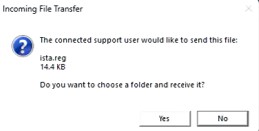
The client and choose to accept or reject - if they accept the file then they are able to choose the location where the file is downloaded to.
- Master Users may Drag and Drop files to the Client desktop or windows explorer.
If a Client wishes to share a file with the Master user then they can drag a file to the banner:

That action will intiate a popup on the Master PC and the user can select where the file is to be stored.
Additonal Controls
There are 3 vertical dots, clicking those reveals:
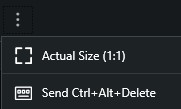
These controls allow the user to resize the window to 1:1 ratio and send the Ctrl+Alt+Delete command to the client PC - useful for enabling Task Manager