Managing Bookmarks & Unattended Access
Managing Bookmarks
To add a bookmark PC, first use Car Connector Remote Desktop & connect to the PC.
In the controls click the "Add to Bookmarks" button:

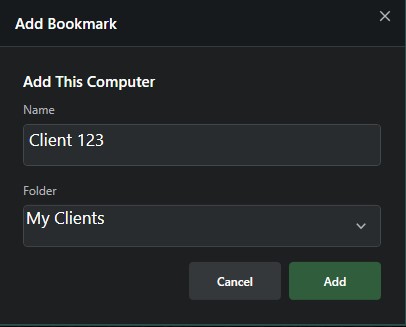
The user is presented with a dialog box - they can name the PC and add them to an existing folder or create a new folder by typing in the field:
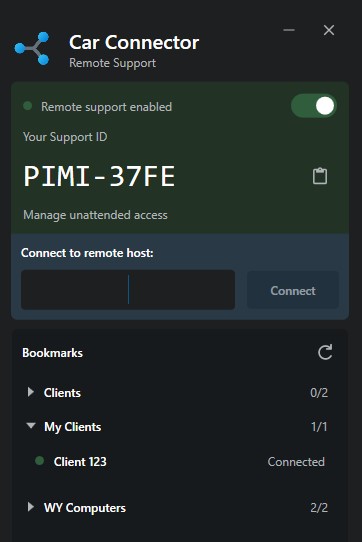
This will update the Remote Desktop window:

The bookmarked PC is now visible in the Master user's list, you can see when that PC is online/offline and click to connect.
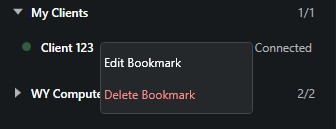
If you wish to Edit or Delete a bookmark, right click and a menu will display:
Managing Unattended Access
In order to allow Unattended Access - when you connect, the client must allow:
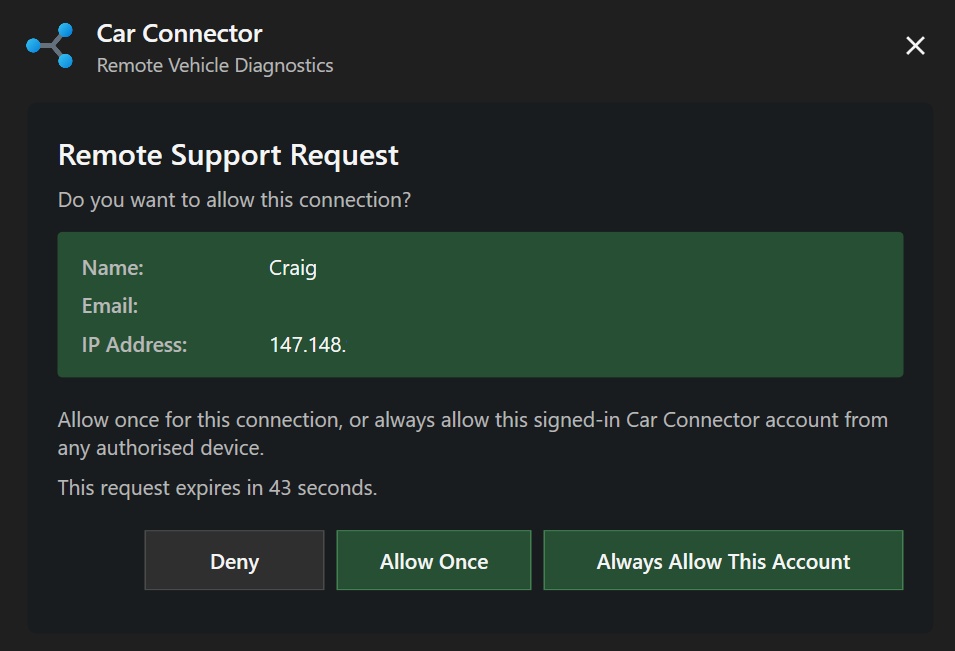
Click "Always Allow this Account" - the client will be presented with a confirmation popup:
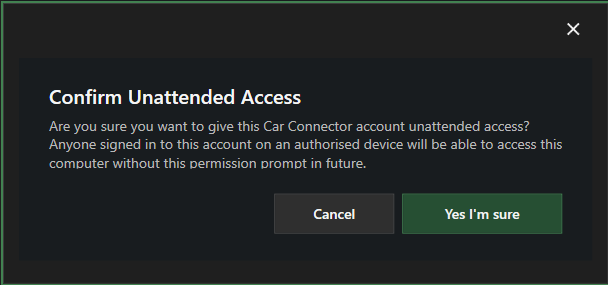
Click "Yes I'm sure" to allow Unattended Access.
Manage access as a Client
Users can manage who has Unattended Access to their PC. Click "Manage Unattended Access" in the Remote Desktop app:
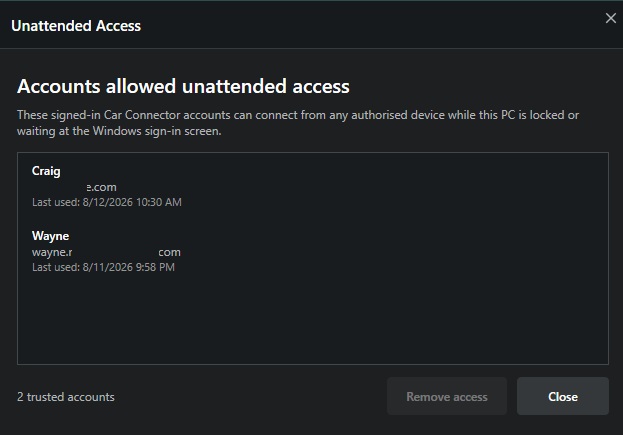
Clicking "Remove Access" will invoke a confiration popup:
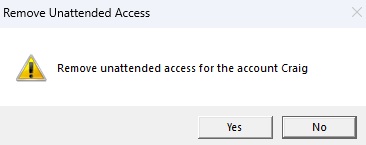
Clicking "Yes" will remove that account from the list and that Master user will no longer have access to the PC until the Client allows acccess again.